
I started with a simple idea: build a private learning workspace that could keep my plans, notes, and useful links in one place. What made the project interesting was not only the app itself, but how far GitHub Copilot helped me move from idea to implementation, and how the GitHub Copilot SDK let me bring that same assistant into the product as a grounded in-app chat experience.
For a long time, my learning system looked like a lot of engineers’ learning systems: a mix of browser tabs, half-finished notes, saved links, and a mental backlog that felt more organized than it actually was.
I wanted a single place where I could track what I was learning, what I needed to build next, which resources were worth coming back to, and what I had already figured out. So I built a Blazor-based workspace for myself. It includes a training plan, saved resources, notes, timeline views, and a private dashboard.
That part was useful.
The more interesting part was what happened while building it.
GitHub Copilot was not just a code completion tool during this project. It became part of the way I thought through structure, iterated on components, cleaned up service boundaries, and moved faster through the boring parts that usually slow momentum down. Then, once the application had enough useful data inside it, I took the next step and used the GitHub Copilot SDK to bring Copilot chat directly into the app.
That changed the project from a personal dashboard into something more compelling: an application where the assistant could work against the actual context I cared about.
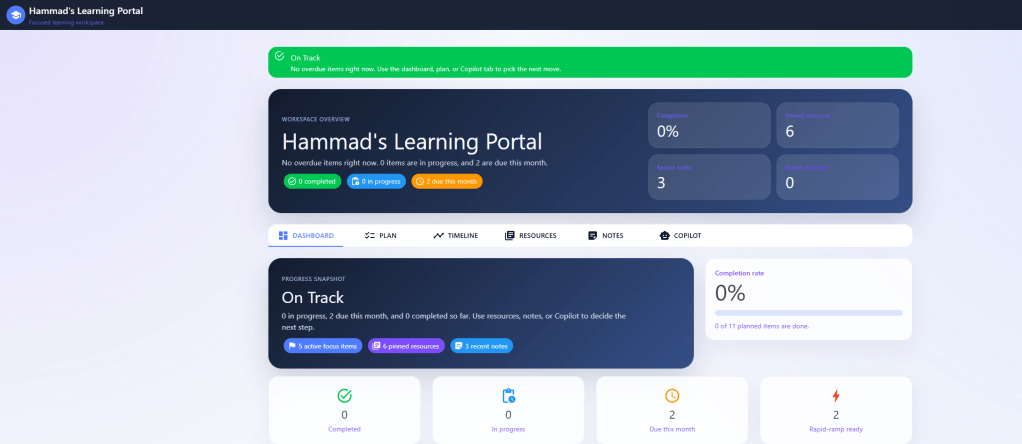
What GitHub Copilot changed during the build
The biggest value for me was speed with direction.
When I build something from scratch, the hard part is usually not typing code. It is keeping momentum while making a hundred small design and implementation decisions. Naming services. Shaping models. Breaking a page into components. Wiring authentication. Cleaning up repetitive UI logic. Getting from a rough concept to something coherent.
GitHub Copilot helped compress that loop.
I could sketch a direction, ask for a first pass, refine it, and keep moving. That mattered most in a project like this because the app spans several concerns at once: UI, local persistence, tracker logic, authentication, Azure deployment, and now an embedded AI experience. None of those pieces are individually exotic, but combining them usually creates drag. Copilot helped reduce that drag.
What I liked most was not that it wrote everything for me. It did not. The value was that it kept me from losing time on the blank-page problem and on low-value plumbing. I could stay focused on the shape of the product and the quality of the integration.
That is the real reason I think GitHub Copilot changes how small apps get built. It does not replace engineering judgment. It gives that judgment more leverage.
The moment the project became more than a tracker
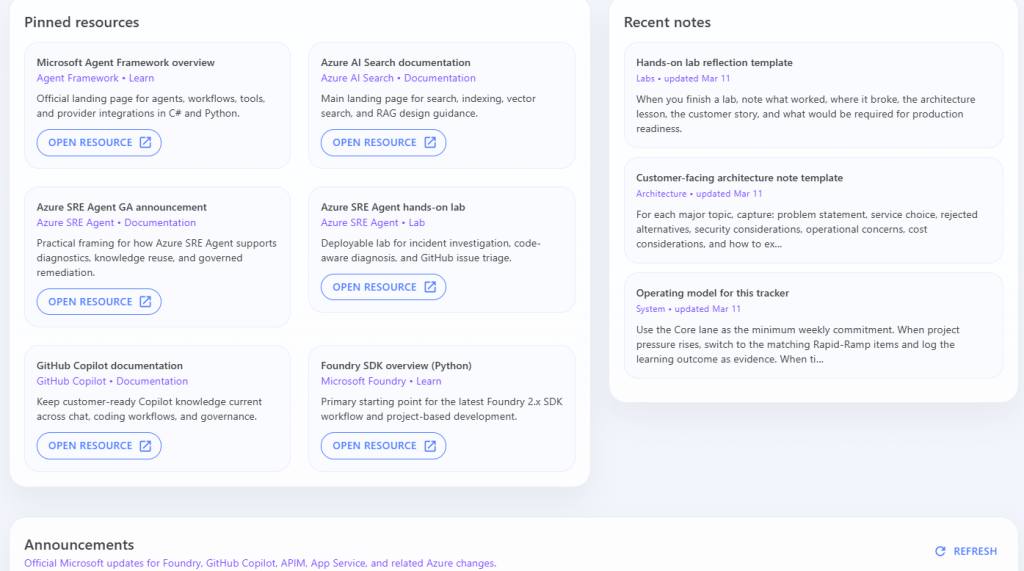
Once the app had enough data in it, plans, notes, saved resources, and a dashboard snapshot, a natural question showed up: why leave that context behind every time I want help thinking through next steps?
That is where the GitHub Copilot SDK became genuinely interesting.
Instead of treating Copilot as something that only lives in the editor, I could bring a chat agent into the application itself. More importantly, I could make that chat useful by grounding it in the data the app already understood.
In practical terms, that meant the assistant could work with things like:
- my current training items
- saved resources grouped by topic
- notes and reflections I had already written
- summary information from the dashboard
That is a much better starting point than opening a generic chat window and re-explaining your situation from scratch.
This is the part I think people underestimate about the Copilot SDK. The power is not in adding a chat panel to your app. The power is in giving the assistant meaningful, structured access to the context your app already owns.
Why the Copilot SDK feels powerful
The best way to describe it is this: the SDK gives you a path from helpful assistant to useful product capability.
In this project, I used the SDK to create a Copilot client, start a session, expose app-specific tools, and guide behavior with a focused system message. That let the assistant answer questions about actual in-app data instead of drifting into generic advice.
The difference is subtle but important.
I did not want an assistant that sounded smart. I wanted one that could answer, “What should I focus on next based on the work already in my plan?” or “Which of my saved resources best match the task I am trying to finish?” That only works when the assistant has a clear path into the application’s own domain.
In my case, the tools behind the chat session expose things like dashboard metrics, training items, resources, notes, and small save operations. The system message then pushes the assistant to ground factual answers in those tools and avoid inventing details.
That pattern is what makes the experience feel credible.
A quick guide to integrating GitHub Copilot chat into your app
If you want the short version of how this works, the flow is straightforward.
1. Add the SDK package
Install the GitHub Copilot SDK in your app project.
<PackageReference Include="GitHub.Copilot.SDK" Version="0.1.32" />
2. Set up GitHub OAuth
Your app needs a GitHub OAuth flow so the signed-in user can use their GitHub identity and Copilot entitlement. In my app, I wired OAuth in ASP.NET Core and stored the returned access token in an application-side session store rather than pushing it into the auth cookie.
That part matters because a working Copilot integration is not only about the package reference. You also need:
- a GitHub OAuth app
- a valid callback URL
- client ID and client secret configuration
- a GitHub account with access to Copilot
3. Create and start a Copilot client
Once I had the GitHub access token, I used it to create a CopilotClient.
var options = new CopilotClientOptions{ GitHubToken = runtime.AccessToken, UseLoggedInUser = false};runtime.Client = new CopilotClient(options);await runtime.Client.StartAsync();
From there, the app can load the models available to that signed-in user and create a session against the selected model.
4. Create a session with tools
This is the step that makes the integration worth doing.
The session is not only a model selection. It is where you define what the assistant is allowed to use from your application. In my app, I expose functions for reading dashboard state, training items, resources, and notes, plus a few targeted save operations for small changes.
runtime.Session = await runtime.Client!.CreateSessionAsync(new SessionConfig{ Model = effectiveModel, Streaming = true, Tools = tools, AvailableTools = toolNames, SystemMessage = new SystemMessageConfig { Mode = SystemMessageMode.Append, Content = """You are the learning copilot for UpskillTracker.Rules:- Ground factual answers in the tracker tools before making claims.- Prefer existing tracker data over generic advice.- Never invent IDs, task names, or saved resources.""" }});
That is the leap from generic chat to domain-aware chat.
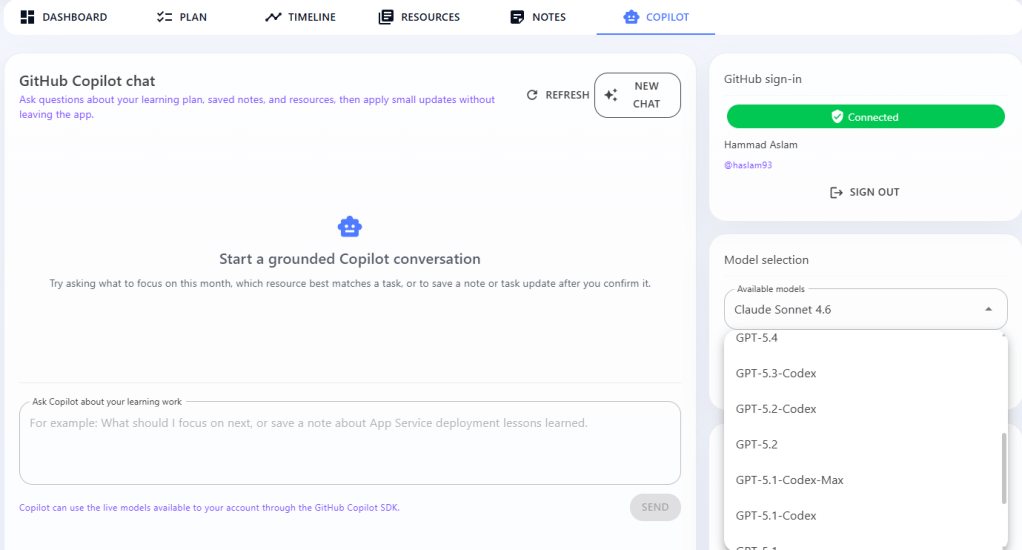
5. Keep the assistant narrow and useful
One lesson from this project is that good embedded AI experiences usually get better when they get narrower.
I did not try to make the assistant do everything. I wanted it to help with planning, summarizing, matching resources to work, and making small updates when explicitly asked. That boundary made the experience more predictable and more trustworthy.
If you are considering the Copilot SDK for your own app, that is the design advice I would start with: give the assistant a clear job, a clear tool surface, and a clear set of rules.
What felt most human about this build
There is a version of this story that makes it sound like I had a neat product vision from day one and executed it in a straight line.
That is not what happened.
This project came together the way many useful side projects do: in small decisions, corrections, rewrites, and moments where the right next step only became obvious after building the previous one. Sometimes the best use of Copilot was generating a first draft. Sometimes it was helping me see the shape of a cleaner approach. Sometimes it was only there to keep me moving when the work became repetitive.
That is why I think the conversation around AI-assisted development is better when it gets more honest.
The value is not that the tool magically builds the product for you. The value is that it helps you spend more of your energy on product judgment, system design, and iteration, and less on routine friction.
Then, if your product benefits from an assistant experience, the Copilot SDK gives you a clean way to carry that value into the application itself.
Final thought
The app I built here matters to me because it solves a real problem in my own workflow. But the larger takeaway is about GitHub Copilot.
It helped me get from idea to implementation faster, with less drag and more room to refine the parts that actually matter. And once the application had useful context inside it, the GitHub Copilot SDK made it possible to bring that same assistant into the product in a way that felt grounded, practical, and worth using.
That combination is what stands out to me.
GitHub Copilot helped me build the app.
The Copilot SDK helped me turn the app into a place where Copilot itself could become part of the experience.
If you want to see how I wired it together, the full repository is here:
 Hammad's Blog!
Leave a comment